
Comprehensive Guide to Flawless WordPress Migrations
Let’s be honest: if you’ve ever watched a website migration go sideways, you know exactly what panic feels like. One moment the site is humming along, and the next, broken links pile up faster than you can fix them, visitors hit 404 errors, and organic traffic starts circling the drain. We’ve been managing WordPress sites for over a decade, and we can tell you that site migrations don’t have to be this way. When done properly, migrations are smooth, strategic transfers that preserve everything you’ve built: your rankings, your traffic, and your sanity.
The truth is that WordPress site migration has become a critical skill set for agencies and businesses that want to grow without shooting themselves in the foot. With WordPress powering approximately 43.6% of all websites on the internet as of early 2026, migration expertise isn’t some niche specialty anymore. It’s fundamental infrastructure knowledge that separates professional operations from amateur hour. Whether you’re changing hosts for better performance, migrating to a new domain as part of a rebrand, or consolidating multiple sites, the principles remain the same: plan meticulously, execute methodically, and verify obsessively.
Table of Content
Understanding Zero-Downtime Migration Strategy
Zero-downtime migration sounds like marketing hype until you understand the mechanics behind it. The core concept involves running both your old and new servers simultaneously during the DNS transition period. While DNS propagates globally routing some visitors to the old server and others to the new server, both environments remain fully operational. This dual-server approach means users experience seamless service regardless of which server their request routes to, because identical content and functionality exist in both locations.
The secret weapon in zero-downtime migrations is DNS Time-to-Live manipulation. DNS TTL settings determine how long internet service providers cache your DNS records before querying authoritative nameservers again. Standard TTL values typically range from 24 to 48 hours, which creates a problem during migration: when you change your site’s IP address, some visitors continue hitting the old server for up to two days while others connect to the new server. This split-brain scenario causes inconsistent user experiences and potential data loss.
The solution requires a two-stage TTL reduction strategy. Three days before your scheduled migration, reduce your DNS TTL to 5 minutes. This lower value doesn’t take effect immediately: it waits for the current long TTL to expire globally. Once that original TTL period passes and the 5-minute setting takes effect worldwide, you can change the actual IP address. With TTL at 5 minutes, the new IP propagates globally within minutes rather than days. Both servers continue operating during this brief window, maintaining uninterrupted service.
Pre-Migration Planning and Documentation
Every successful migration starts with comprehensive planning and assessment. We’ve learned through painful experience that skipping the planning phase leads to problems that emerge within 48 hours after launch usually when you’re least prepared to handle them. The foundation for success involves creating detailed documentation of your current environment before you change anything.
Your pre-migration audit should inventory every external service your WordPress installation connects to: payment gateways, email service providers, content delivery networks, security tools, backup systems, and third-party APIs. Each integration represents a potential failure point during migration. Recording API keys, authentication tokens, configuration details, and service dependencies creates a reference document that prevents scrambling when something stops working after the move.
Performance baseline measurements prove essential for validating migration success. Before touching anything, document your current page load times, Core Web Vitals scores including First Contentful Paint and Largest Contentful Paint, server response times, and database query performance. Record SEO metrics through Google Analytics and Google Search Console, noting top-ranking pages, keyword positions, and organic traffic levels. These benchmarks become reference points for post-migration validation: you need concrete numbers to prove the migration succeeded rather than relying on subjective feelings.
Content audits reveal opportunities to clean house during migration rather than blindly transferring everything. Mature WordPress installations accumulate years of digital clutter: outdated posts, unused media files, deprecated plugins, and redundant content. Identifying high-value pages that deserve migration priority versus low-value content that can be archived or deleted streamlines the transfer and improves the new site’s performance from day one.
The Critical Role of Comprehensive Backups
We cannot stress this enough: complete, verified backups represent the most fundamental migration safeguard. A proper backup includes three components: your entire WordPress file structure including all plugins, themes, and the wp-config.php file; your complete database with proper UTF-8mb4 character encoding for compatibility; and all uploaded media and content files. Partial backups or untested backups provide false security: they give you confidence right up until the moment you try to restore and discover the backup is corrupt or incomplete.
Storage location matters as much as backup completeness. A backup stored only on the same server you’re migrating from provides zero protection if that server becomes inaccessible during migration. We follow the 3-2-1 backup rule as detailed in our guide on WordPress backup strategy: three copies of your data, stored on two different locations, with one copy stored offsite. This redundancy protects against the catastrophic failures that occasionally happen during complex technical operations.
Just as important as creating backups is verifying they actually work. Set up a local development environment or staging server and test restoring from your backup before you need it for real. Nothing generates panic quite like discovering your backup is corrupted or incomplete when you’re trying to recover from a failed migration. Testing restoration procedures in advance confirms your safety net exists and functions properly.
Staging Environment Testing: The Practice Run
Every migration should include a complete dry run on a staging environment before touching production systems. This practice migration serves multiple critical purposes: it validates your chosen migration method works correctly, identifies problems before they impact live systems, provides team training on the migration process, and builds confidence that the production migration will proceed smoothly.
Your staging environment should replicate production as closely as possible, including matching WordPress versions, PHP versions, plugin configurations, and theme settings. Testing all site features and functionality confirms everything works correctly before proceeding to production. This includes validating internal and external links, form submissions, payment processing with test credentials, user login functionality, media display, plugin-specific features, and any custom functionality.
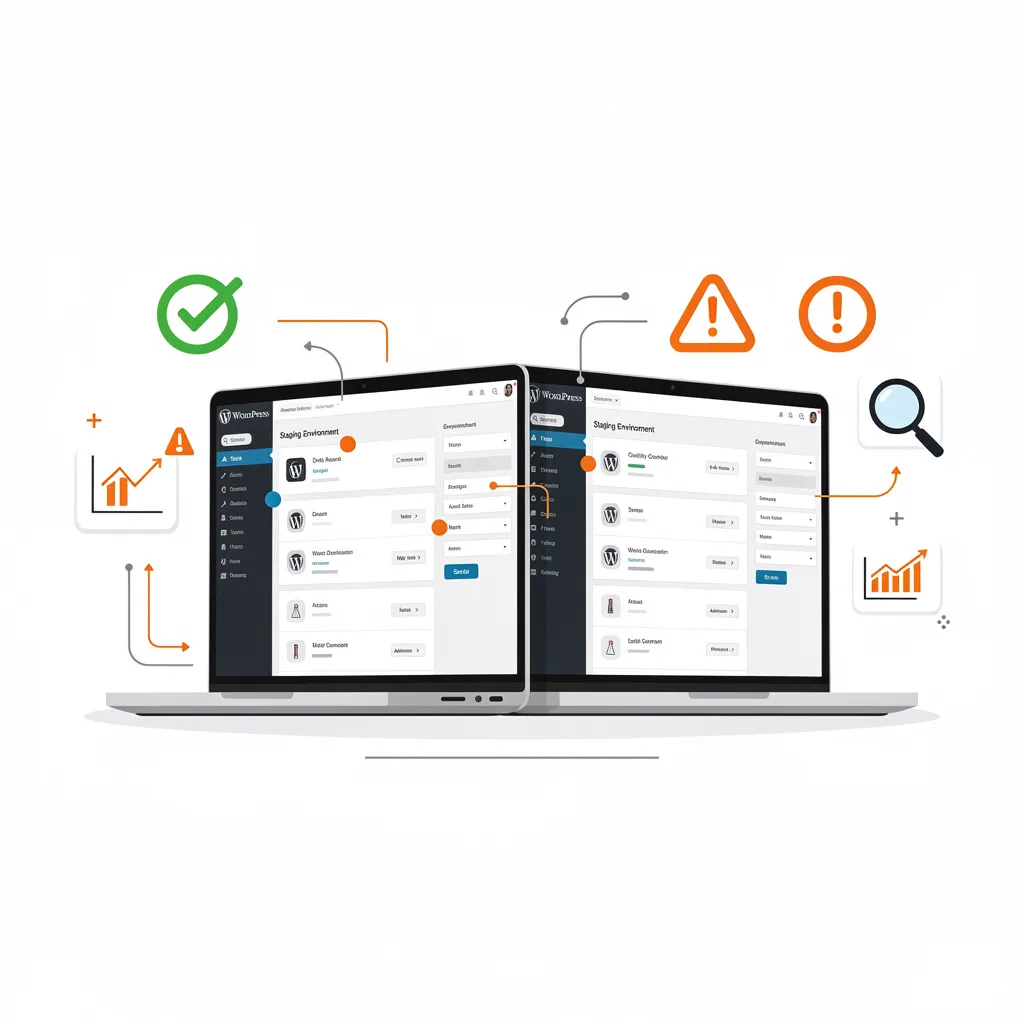
For WooCommerce sites or other ecommerce platforms, staging validation must verify that products display correctly with all variations, images, pricing, and stock status intact. Running a test purchase through the complete checkout flow reveals problems with payment gateways, shipping calculations, tax rules, and order confirmation emails before they affect real customers. Testing on both desktop and mobile devices across multiple browsers ensures responsive design functions correctly after migration.
The staging migration should use the actual migration methods and tools planned for production, not shortcuts that wouldn’t work for real data volumes. If using migration plugins, the staging run should use the same plugin with identical configuration settings. If using manual migration methods, the staging run should follow the same procedures. This ensures discovered problems reflect actual migration challenges rather than test limitations.
Choosing Migration Methods and Tools
Migration execution methods vary based on site characteristics, hosting provider capabilities, and available resources. For smaller WordPress installations, migration plugins like Duplicator, All-in-One WP Migration, or Migrate Guru provide straightforward transfers with minimal technical overhead. For larger installations or complex scenarios requiring maximum control, manual migration using command-line tools, database exports, and SFTP transfers often provides better performance and flexibility.
Duplicator represents one of the most trusted WordPress migration solutions, with over one million active installations and a 4.9 out of 5 star rating. The plugin simplifies migration through a two-step process: creating a complete site package including files and database, then using an installer script to restore that package on the destination server. The Pro version adds capabilities like direct server-to-server imports without downloading to local machines.
Migrate Guru offers completely free migrations with no hidden costs or premium upgrades, capable of handling sites up to 200GB in size. The migration process is highly automated, you enter destination site details, click migrate, and Migrate Guru handles technical steps like URL replacement and complex database transformations. The main limitation is a monthly cap of five different sites per account, though the same sites can be migrated repeatedly.
For larger installations requiring fine-grained control, manual migration provides advantages. This approach involves exporting the WordPress database through phpMyAdmin or command-line tools, downloading the complete WordPress file structure via SFTP, uploading these files to the new server, importing the database, and updating wp-config.php with new database credentials. While more technically demanding, manual migration allows precise control and often performs better for very large sites.
Strategic Redirect Implementation for SEO Preservation
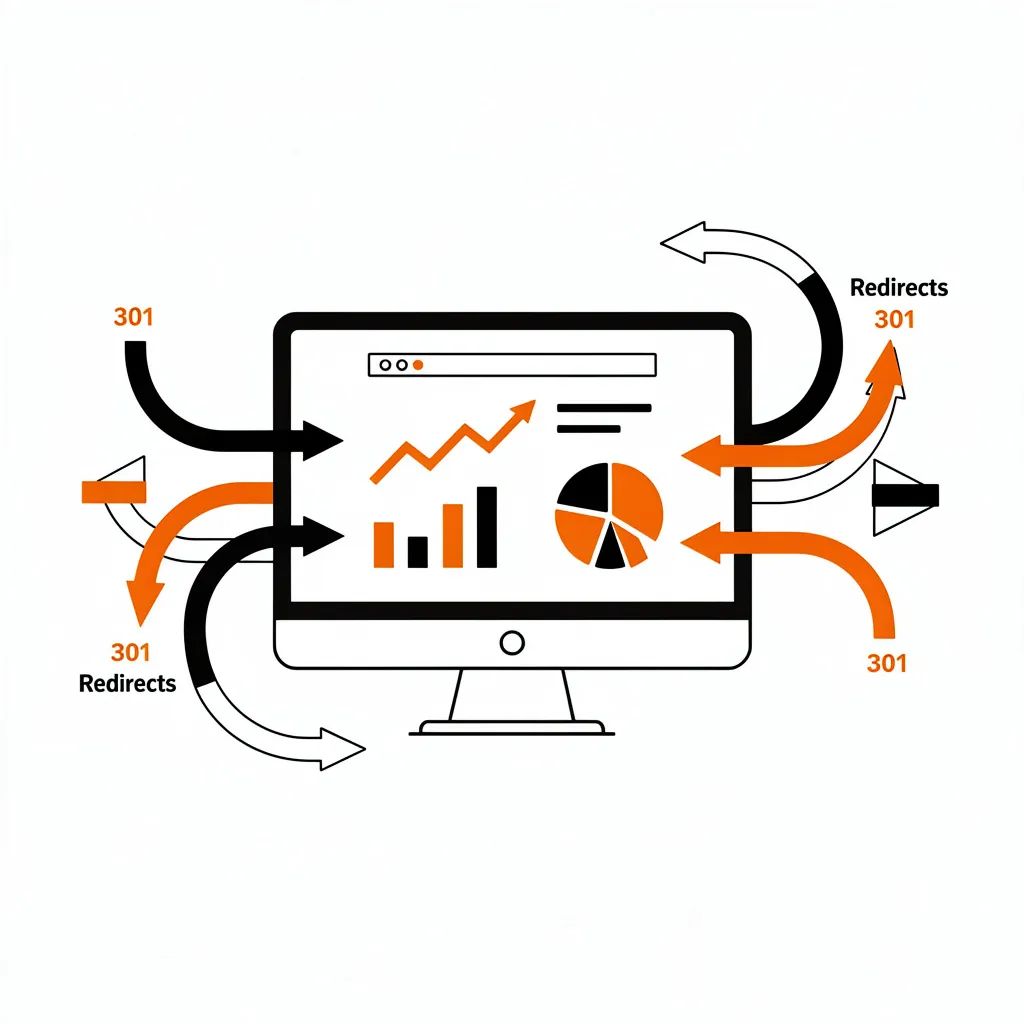
Redirects represent the critical mechanism for preserving SEO value during migrations, particularly when domain names or URL structures change. A 301 redirect tells search engines that a page has permanently moved to a new location, passing along accumulated SEO authority and link value to the new URL. Without proper 301 redirects, migrating a site loses the ranking power and organic traffic associated with changed URLs.
Comprehensive redirect planning should begin during your pre-migration audit. If URLs remain identical during migration, no redirects are necessary content simply continues existing at the same URLs on the new server. If URLs change, you must create a detailed URL mapping that documents every old URL and its corresponding new URL. This mapping becomes your authoritative reference for creating redirects, and the effort invested in accuracy directly correlates to migration success.
For large sites with URL changes, automated tools like Screaming Frog SEO Spider can generate comprehensive URL lists by crawling your existing site, documenting every URL structure. This crawl data becomes a template for mapping changed URLs. High-priority pages identified during earlier SEO audits should receive special attention in redirect mapping ensuring these valuable pages redirect correctly is critical for maintaining traffic and conversions.
Redirect chains situations where URL A redirects to URL B which redirects to URL C should be avoided as they slow page loads and waste SEO authority with each redirect hop. Every old URL should redirect directly to its final destination without intermediate redirects. For detailed implementation guidance, our article on how to set up redirects in WordPress covers multiple methods including plugin-based and server-level approaches.
Database URL Updates and Search-Replace Operations
When domains change or URL protocols shift from HTTP to HTTPS, the WordPress database must be updated to reflect new URLs. The database stores URLs as absolute paths in numerous locations: post content, post metadata, theme options, plugin settings, and widget configurations. Failing to update these URLs results in broken images, broken internal links, mixed content warnings when switching to HTTPS, and improper functionality.
Search and replace operations must be approached carefully, as database changes are permanent and mistakes create widespread problems. Before running any search and replace, create a fresh database backup. The operation should use tools specifically designed to handle serialized data, data compressed with PHP’s serialize() function as simple search and replace can break serialized values by changing their byte counts.
The Better Search Replace and Easy Update URLs plugins both safely update WordPress URLs while preserving serialized data integrity. These plugins run search and replace operations carefully, verifying changes don’t corrupt database values. Testing with a small trial run before executing the full replacement identifies potential problems when they’re still easily fixable.
For developers comfortable with database administration, the WP-CLI tool’s search-replace command provides command-line access to this functionality. The general syntax is: wp search-replace ‘old-domain.com’ ‘new-domain.com’. This command carefully handles serialized data and performs operations without browser timeouts that affect web-based tools.
SSL Certificate Configuration and HTTPS Migration
SSL/TLS certificates encrypt data transmitted between visitors’ browsers and web servers, essential for security and required by modern web standards. Google ranks HTTPS sites higher than HTTP sites, and browsers display security warnings for HTTP sites. During migration, proper SSL configuration often determines whether the new site functions correctly from a visitor perspective.
Most modern WordPress hosting providers include free SSL certificates, typically through Let’s Encrypt. The certificate installation process varies by provider, but generally involves requesting or auto-provisioning a certificate for your domain and configuring the web server to use it. After installing an SSL certificate on the new server, WordPress configuration must be updated to use HTTPS URLs.
Mixed content warnings occur when a page loads over HTTPS but references assets like images, scripts, or stylesheets over HTTP. This indicates incomplete URL updates during migration. Search and replace operations should ensure all asset URLs reference HTTPS versions. Third-party scripts and external resources should be updated to use HTTPS versions where available. Our detailed guide on WordPress website redesign covers HTTPS migration as part of comprehensive site updates.
Post-Migration Verification and Testing Protocol
Post-migration testing begins immediately after DNS changes propagate and should systematically verify every component that matters to your site’s users and search engines. A comprehensive verification checklist includes general site functionality, content integrity, SEO elements, performance metrics, and third-party integrations.
General site verification confirms that all posts, pages, and content transferred correctly and display properly. Visual inspection should verify the theme displays correctly, menus function properly, sidebars appear as expected, and no layout shifting or missing elements exist. Admin dashboard login should work with original credentials, and user accounts should function normally.
Mobile responsiveness requires explicit testing, as design elements that work on desktop sometimes fail on mobile devices. Test your site across multiple devices including phones, tablets, and desktops, and across multiple browsers including Chrome, Firefox, Safari, and Edge. Interactive elements like dropdowns, accordions, modals, and media players should function correctly across all platforms.
Forms and interactive elements require thorough testing, as broken forms represent lost leads and customer inquiries. Contact forms should submit successfully and generate confirmation emails. Newsletter signup forms should add subscribers correctly. Comments should function on blog posts with notifications sending appropriately. Testing every form type on your site prevents embarrassing post-launch discoveries of broken functionality.
Link verification catches one of the most common migration problems. Use tools like Broken Link Checker or Screaming Frog to scan for broken internal links, broken external links, and incorrect redirects. All high-priority pages identified during pre-migration planning should be manually tested to confirm they display correctly and function as expected. Sometimes problems manifest in subtle ways that automated tools miss, making manual review essential for business-critical pages.
Performance testing confirms the new server provides expected speed improvements one of the primary motivations for many migrations. Core Web Vitals metrics should be compared to pre-migration baselines. If migration was pursued for performance reasons, post-migration metrics should demonstrate measurable improvement. Page load times, server response times, and caching configurations should all be verified as meeting or exceeding original performance targets.
SEO Migration Monitoring and Traffic Validation
SEO considerations permeate every phase of migration, from planning through post-launch monitoring. The goal is maintaining or improving organic traffic and search rankings through careful migration execution. Detailed SEO baseline measurement before migration establishes reference points that prove success or identify problems requiring correction.
Current organic traffic should be documented through Google Analytics before migration begins. Current keyword rankings should be noted for top-ranking pages through Google Search Console or SEO tracking tools. Indexed pages should be counted to understand current search engine coverage. These metrics are compared against post-migration results to measure impact and identify issues.
XML sitemaps must be updated to reflect the migrated site structure and submitted to search engines. Sitemaps guide search engines toward important content and ensure comprehensive crawling. If URL structure changed during migration, sitemap URLs must reference new URLs rather than old ones. Submit updated sitemaps through Google Search Console and Bing Webmaster Tools immediately after migration completes.
Robots.txt and canonical tag configuration require careful attention. If you tested on staging environments, staging robots.txt files should have blocked search engine crawlers to prevent indexing test versions. Production robots.txt should allow crawling of your actual site. Canonical tags should point to migrated URLs, preventing duplication issues that confuse search engines and dilute ranking power.
Post-migration organic traffic tracking should start immediately and continue for at least two months. Comparing actual organic traffic to pre-migration baseline helps identify issues quickly. Small fluctuations during the first two to four weeks are normal as search engines recrawl the site, but sustained declines of 20% or more indicate problems requiring investigation and corrective action. For more guidance on handling common post-migration issues, see our article on solving WordPress 404 errors.
Email Configuration and Third-Party Service Validation
Email functionality could breaks during migration when domain mail records aren’t properly configured on the new server. If you or your clients use domain-based email addresses, the email system must be configured correctly or email fails silently. Contact forms won’t send notifications, password reset emails won’t arrive, and order confirmation emails won’t reach customers all without obvious error messages.
Email authentication through SPF, DKIM, and DMARC records has become increasingly important as Gmail and Yahoo enforce stricter authentication requirements. These DNS records authenticate emails claiming to come from your domain, preventing spoofing and improving deliverability. Without proper configuration, emails may be rejected or marked as spam, particularly important for transactional emails from WooCommerce or contact forms.
All third-party services integrating with WordPress should be tested after migration. Payment gateways, email service providers, API connections, analytics platforms, and marketing automation tools all require verification. Configuration of API keys, webhooks, and connection settings often fails if not explicitly reconfigured during migration. Testing these integrations confirms data flows correctly between systems and business operations continue uninterrupted.
Common Migration Mistakes and How We Prevent Them
Through years of managing WordPress migrations, we’ve seen patterns in the mistakes that cause problems. Skipping full backups before migration represents perhaps the most dangerous error. Without verified backups, even minor migration problems become catastrophic, there’s no way to recover if something goes wrong. Full backups must include files, database, and media stored in multiple locations for redundancy.
Ignoring server configuration differences between old and new hosts causes numerous problems that appear after launch. PHP versions, MySQL versions, memory limits, execution timeouts, and extension availability all affect WordPress functionality. Testing in staging environments catches these incompatibilities before they impact production, allowing time to adjust configurations or choose alternative hosting solutions.
Failing to update database URLs after migration leaves broken images, broken links, and mixed content warnings throughout your site. This common mistake is easily preventable through systematic search and replace operations using proper tools, but the effects are immediately visible to users and embarrassing to explain to clients.
Forgetting to regenerate WordPress permalinks and .htaccess files results in 404 errors on pages that should be accessible. After migration, visit Settings > Permalinks in the WordPress dashboard and click “Save Changes” without changing anything. This one action regenerates the .htaccess file with proper rewrite rules for the new server environment.
File and directory permission errors prevent uploads, theme changes, and plugin installations after migration. Correct permissions are 644 for files and 755 for directories. Most hosting provider control panels provide simple interfaces for adjusting permissions if post-migration testing reveals permission problems.
Building Migration Excellence Into Your Operations
WordPress site migration has evolved from a specialized technical skill to a critical service offering that agencies must master to remain competitive. The modern WordPress ecosystem’s complexity with countless plugins, custom implementations, and integration requirements means straightforward migrations are increasingly rare. Each migration presents unique challenges demanding methodical planning, technical expertise, and attention to detail.
The zero-downtime techniques we’ve covered TTL reduction, staging environment testing, running parallel servers, and comprehensive post-migration verification represent best practices that transform what could be a catastrophic disruption into a seamless transition clients barely notice. These techniques eliminate the downtime and data loss risks that characterize inexperienced migration attempts.
For detailed guidance on maintaining your WordPress site after migration, our comprehensive resource on how to backup a WordPress website covers ongoing backup strategies that protect against future issues. Migration excellence comes from combining technical knowledge with systematic processes, thorough documentation, and a commitment to verification at every stage. When executed properly, migrations become opportunities to improve performance, enhance security, and position sites for future growth rather than risky operations to be feared and avoided.
Frequently Asked Questions
What is zero-downtime migration for WordPress sites, and how does it work?
Zero-downtime migration keeps your site running smoothly during a host or domain switch by running old and new servers in parallel. Reduce DNS TTL to 5 minutes three days before the cutover this ensures global propagation happens in minutes, not days, so visitors seamlessly hit either server with identical content. We’ve seen this prevent traffic drops and user frustration that plague standard migrations.
Why are comprehensive backups non-negotiable before migrating a WordPress site?
Skipping verified backups turns minor glitches into disasters no recovery means lost data and downtime panic. Follow the 3-2-1 rule: three copies on two media types, one offsite, covering files, database (with UTF-8mb4 encoding), and media. Test restores on a staging site first; we’ve rescued countless migrations this way, avoiding the nightmare of corrupt backups mid-crisis.
How do you preserve SEO during a WordPress domain or URL change?
301 redirects are your SEO lifeline, passing nearly full ranking power to new URLs without traffic loss. Map every old URL to its new equivalent using tools like Screaming Frog, avoid redirect chains, and update sitemaps/robots.txt post-migration. Monitor Google Analytics and Search Console for 2 months small dips are normal, but 20%+ drops signal redirect issues we fix fast.
What’s the best way to test a WordPress migration without risking your live site?
A full staging environment dry run catches 90% of problems before they hit production, saving hours of post-launch firefighting. Mirror your live setup (PHP, plugins, themes), test everything from forms and WooCommerce checkouts to mobile responsiveness. Use the same migration tools planned for go-live; this builds team confidence and uncovers server mismatches early.
Which WordPress migration tools should I use for different site sizes?
Plugins like Duplicator or Migrate Guru simplify small-to-medium sites, while manual methods rule for massive ones needing control. Duplicator’s installer handles packages up to pro-level server imports; Migrate Guru’s free for 200GB sites with URL swaps. For huge databases, export via phpMyAdmin/SFTP pick based on your tech comfort to avoid bloated transfers and performance hits.